How to Set Chrome as Default Browser on Windows 11
This guide explains how to change Windows 11’s default browser from Microsoft Edge to Google Chrome.
Due to Windows 11's design restrictions, some steps require a third-party tool that may stop working after major Windows updates.
This was written in 2022. Instructions and information might be outdated.
Changing Your Default Browser to Chrome
- Select the Start button.

- Search
Default apps.

- Under Best matches, select Default apps
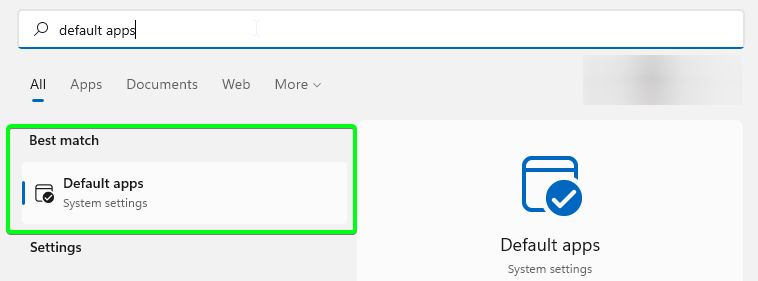
- Select Google Chrome.
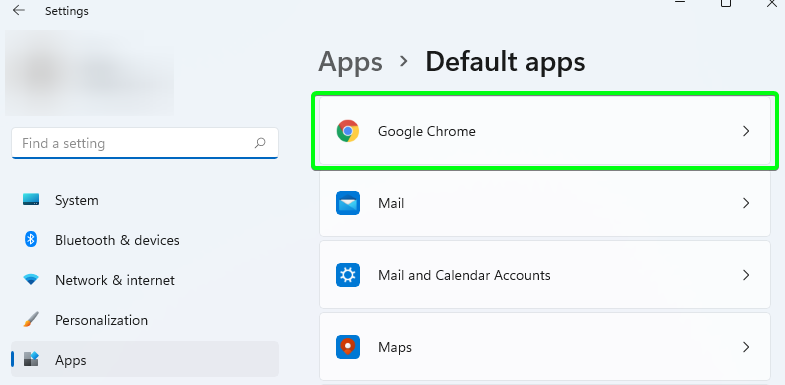
- Select HTTPS.
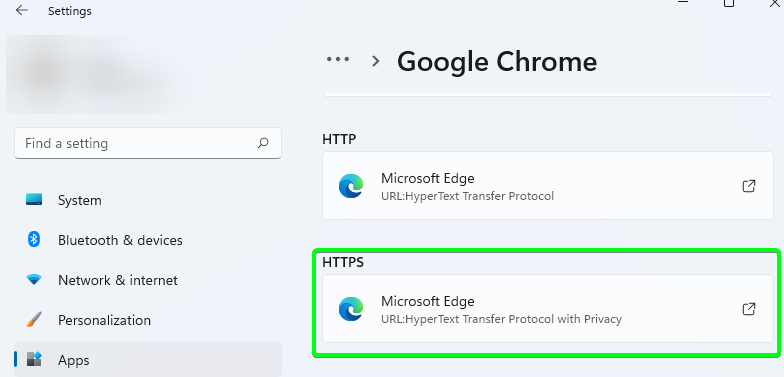
- Select Google Chrome.
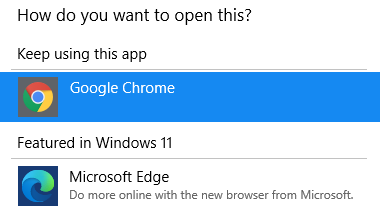
- Select OK.
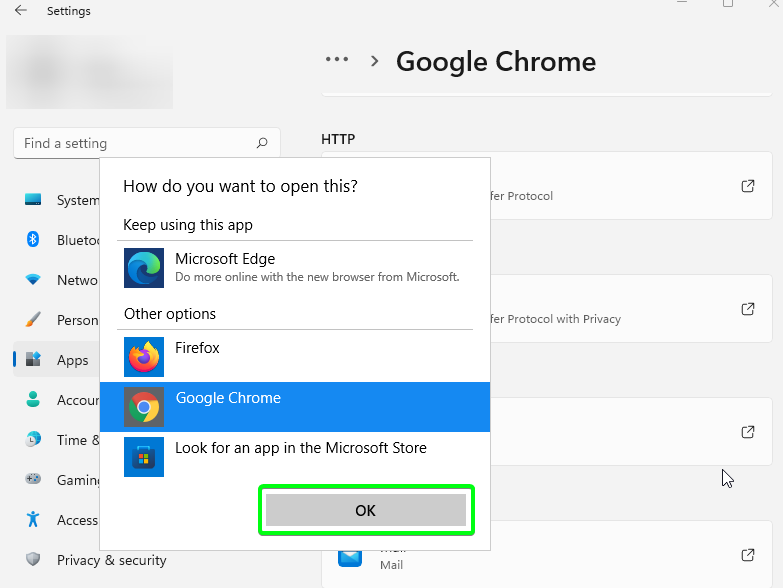
- Repeat steps 5, 6, and 7 for all necessary file associations.
It's recommended to change the default settings for .htm, .html, and .pdf extensions.
Changing Your Default Browser to Chrome for Widgets and Search
Due to Windows 11 design restrictions, changing the default browser for widgets and search requires a workaround.
To change the default browser for widgets, a free external software is required.
The following steps require a third-party tool that may stop working after major Windows updates.
- Download the EdgeDeflector installer.
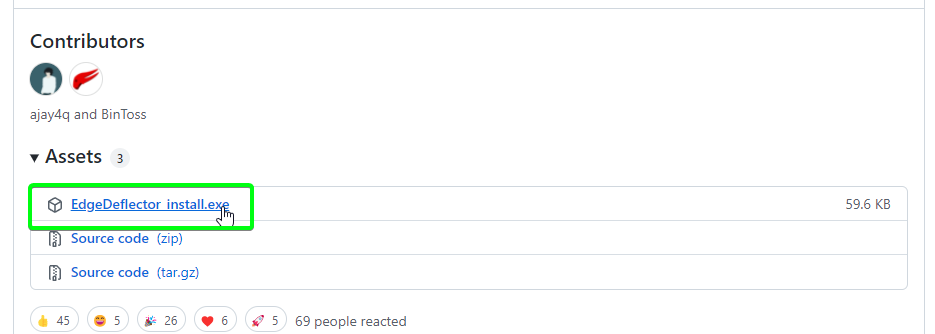
- Run the EdgeDeflector installer.
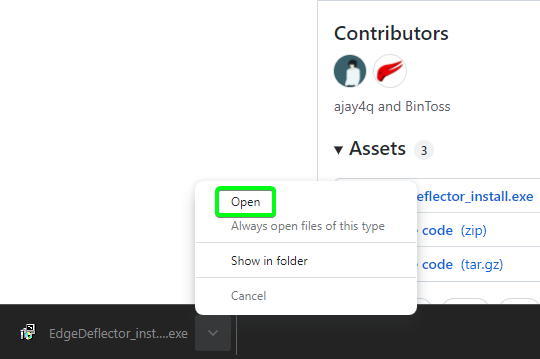
- Select the Start button.

- Search
Default apps.
- Under Best matches, select Default apps
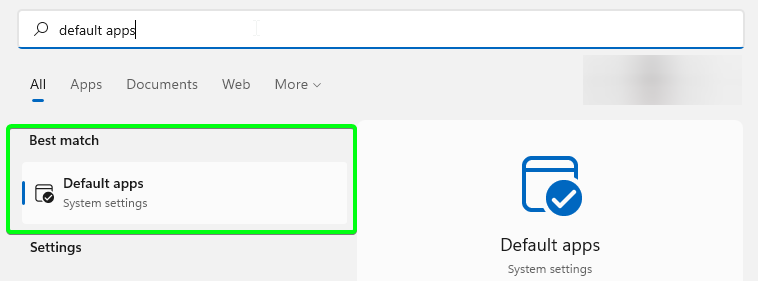
- Select EdgeDeflector.
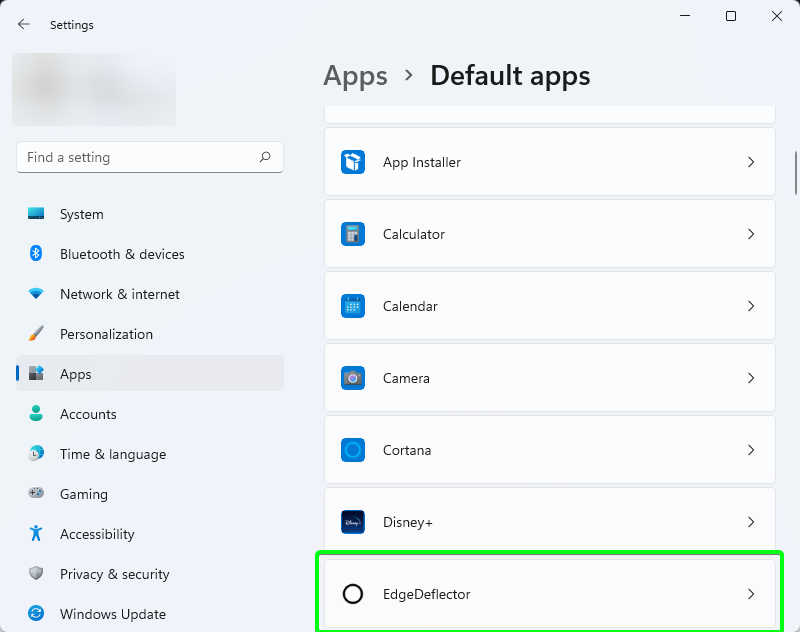
- Select Microsoft Edge.
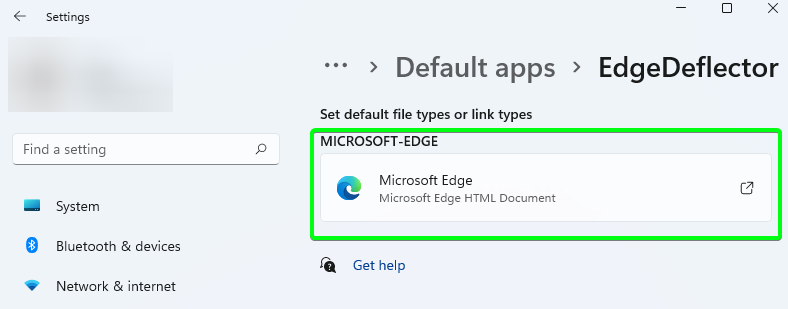
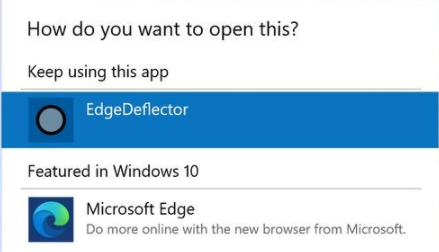
- Select EdgeDeflector.
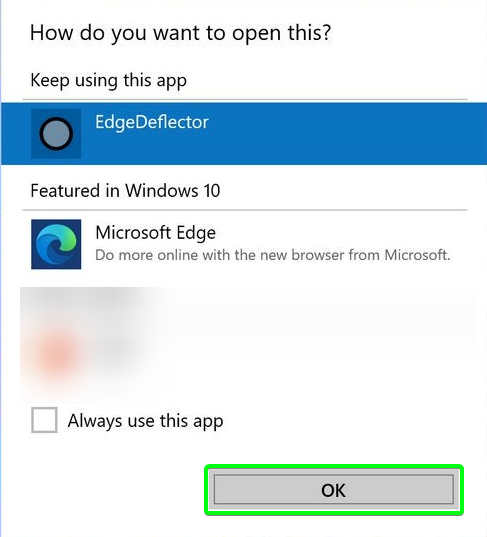
- Select OK.
If EdgeDeflector stops working after Windows 11 updates, check the software's website for new updates.